

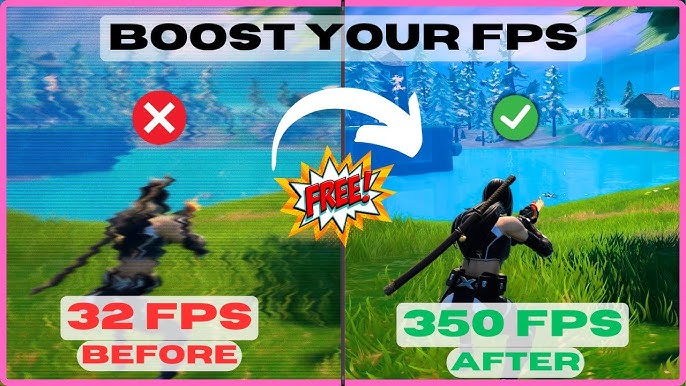
When tackling demanding games, boosting your FPS (frames per second) can dramatically improve your gameplay experience by making visuals smoother and controls more responsive. Optimization doesn’t always require expensive hardware upgrades; often, smart tweaks and settings adjustments can unlock better performance. Here’s how to get the most out of your PC for those resource-heavy titles.
Start with your in-game settings. Lowering or tweaking graphics options such as shadows, reflections, and anti-aliasing can have a significant impact on FPS without severely compromising visual quality. For example, turning off or reducing ambient occlusion or motion blur can free up valuable GPU resources. Many games also offer preset performance modes—using these can be an easy way to balance visuals and frame rates.
Updating your GPU drivers is crucial. Manufacturers like NVIDIA and AMD frequently release optimizations tailored to the latest games. These driver updates can sometimes boost FPS noticeably and fix bugs that might cause stuttering or crashes. Always keep your system drivers and operating system up to date to benefit from these improvements.
Background processes can silently eat up CPU and RAM resources. Before launching a demanding game, close unnecessary applications, disable startup programs, and temporarily pause background tasks like file syncing or updates. Tools like Task Manager help identify resource hogs that might be dragging performance down.
Overclocking your GPU and CPU, if done cautiously, can squeeze extra performance out of your hardware. However, this requires monitoring temperatures and stability to avoid damage or crashes. Many modern graphics cards come with software that simplifies overclocking safely, but it’s best for users who understand the risks and procedures.
Adjusting your Windows settings can also help. Switching to a high-performance power plan ensures your PC isn’t limiting CPU or GPU speeds to save energy. Disabling visual effects like animations and transparency in Windows can free up system resources as well.
Consider optimizing your storage, especially if you’re running games from a traditional hard drive. Installing games on an SSD drastically reduces load times and can reduce stuttering caused by slow data streaming. Also, regularly defragment your drives (for HDDs) or check for errors that might slow down performance.
Finally, resolution and refresh rate matter. Running a game at native monitor resolution is ideal, but slightly lowering it or capping FPS to match your monitor’s refresh rate can stabilize performance. Variable refresh rate technologies like G-Sync and FreeSync help reduce screen tearing and stuttering, creating a smoother experience even if FPS fluctuates.
In summary, boosting FPS in demanding games involves a combination of smart software tweaks, system maintenance, and sometimes modest hardware adjustments. With patience and a bit of trial and error, you can transform how your favorite titles run, making every frame count.